Free Cartoon SVG and PNG Files for Cricut, Canva and Silhouette
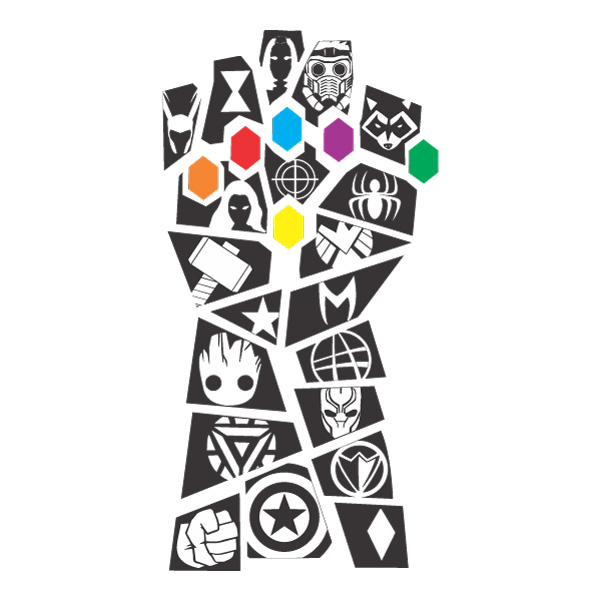
If you create stickers, shirts, party invitations, classroom printables or social graphics, the file format you download matters just as much as the artwork itself. A clean cartoon SVG can be resized without losing quality, while a transparent PNG is faster when you need to drop artwork into Canva, Photoshop or a print layout.
This guide explains how to choose the right cartoon vector file, how to use it in popular design tools and how to avoid blurry results when you print or cut your design.
What is a cartoon SVG file?
An SVG is a scalable vector graphic. Instead of storing a design as fixed pixels, SVG files store shapes, paths and colors. That means the same file can be used for a small sticker, a large poster, a shirt design or a decal without becoming pixelated.
SVG is usually the best choice for Cricut Design Space, Silhouette Studio Designer Edition, laser cut layouts, vinyl decals and clean logo-style artwork. If you want sharp outlines and editable shapes, start with SVG.
When should you use PNG instead?
PNG files are raster images, but they are still very useful when they include a transparent background. Use PNG when you want a quick drag-and-drop image for Canva, Procreate, Photoshop, PowerPoint, Google Slides, social posts or printables.
PNG is also useful when the artwork contains complex shading or a finished full-color look that does not need editing. For the best result, use high-resolution transparent PNG files and avoid repeatedly resizing the image up and down.
Best uses for cartoon vectors
Cartoon vectors work especially well for projects that need bold outlines, clean colors and recognizable silhouettes. Popular uses include laptop stickers, birthday shirts, school worksheets, party favor tags, tumbler wraps, planner stickers and wall decals.
On CartoonVectors you can browse collections such as superhero vector graphics, princess and cartoon character vectors, anime SVG and PNG graphics, and cartoon TV style clipart.
How to use cartoon SVG files in Cricut
- Download the SVG file from the asset page.
- Open Cricut Design Space and choose Upload.
- Select the SVG file and add it to your canvas.
- Resize the artwork before cutting so the details stay easy to weed.
- Use attach or weld carefully when your design has separate layers.
For vinyl cuts, avoid extremely tiny details. Bold character silhouettes, badges, icons and logo-style cartoon graphics usually cut more cleanly than very detailed illustrations.
How to use PNG files in Canva
- Download the transparent PNG version.
- Open Canva and upload the PNG into your project.
- Place it on a poster, invitation, worksheet or social template.
- Keep enough spacing around the artwork so it does not feel crowded.
- Export as PNG for digital use or PDF Print for printable designs.
If the PNG starts to look soft, switch to SVG where possible or download a larger transparent PNG. Small images stretched too far are the most common reason designs look blurry.
Simple SEO tip for creators
If you publish your finished designs online, name your file clearly. A filename like cartoon-superhero-sticker-svg.png is more useful than image-1.png. Add descriptive alt text, write a short caption and place the image on a page that explains what the design is used for.
That same structure is why CartoonVectors keeps separate asset pages, descriptive titles, category pages and an image sitemap. It helps search engines understand both the image and the page around it.
Start with the right format
Use SVG when you need sharp scalable artwork, PNG when you need a quick transparent image, and AI/EPS/PDF when you want professional editing or print workflows. If you are not sure, download both SVG and PNG so you have one editable version and one ready-to-use version.
Explore the latest uploads on the CartoonVectors homepage or jump into the cartoon vector collection to find designs for your next Cricut, Canva or sticker project.