How to Make Stickers with Cartoon Vectors in Cricut and Canva
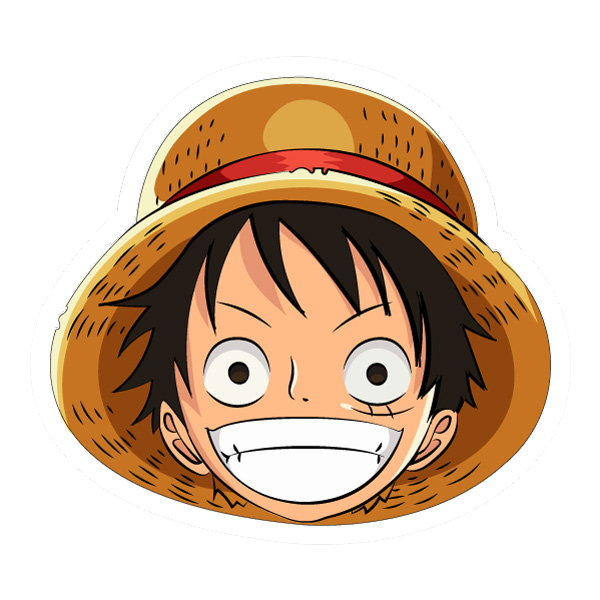
Cartoon vectors are great for stickers because they usually have bold shapes, strong outlines and expressive poses. With the right workflow, you can turn a downloadable SVG or PNG into sticker sheets, planner stickers, laptop decals or party labels.
Step 1: choose artwork with clean edges
Sticker designs work best when the shape is easy to read at a small size. Avoid artwork with too many tiny details if you plan to cut it with Cricut or Silhouette. Badge designs, character portraits, mascot poses and simple icons usually perform well.
Step 2: use SVG for cut files or PNG for print sheets
If you need cut lines and editable shapes, use SVG. If you are making a quick printable sticker sheet in Canva, use a transparent PNG. Keep your source file high quality so the final print does not look soft.
Step 3: create a white border
Most stickers look better with a small white outline. In Canva, you can use shadow or outline effects. In Cricut Design Space, use offset to create a border around the artwork before using Print Then Cut.
Step 4: export at the right size
For sticker sheets, export as a high-resolution PNG or PDF Print. For Cricut, follow the Print Then Cut size limits and test one sheet before printing a large batch. Matte sticker paper often gives a clean result for colorful cartoon artwork.
Step 5: organize your sticker collection
Name your downloaded files clearly and group them by theme. For example, keep superhero badges, cute animals, anime portraits and princess graphics in separate folders. It makes future projects much faster.
You can start with new graphics from the CartoonVectors latest assets, or browse by theme through cartoon princess vectors, TV cartoon vectors and anime SVG PNG clipart.