Why Use SVG Files in Canva?
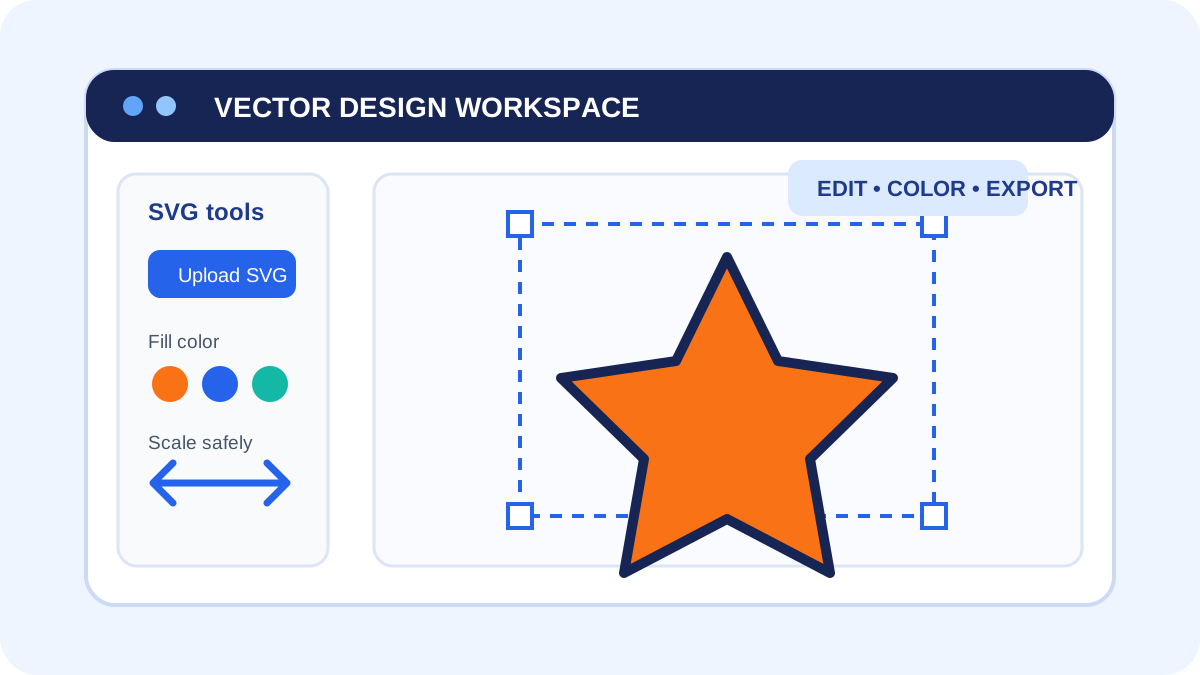
SVG artwork can be resized without losing sharpness. When Canva supports the colors in an uploaded SVG, you may also be able to adjust them from the editor.
Step 1: Choose an Available SVG
Visit the cartoon vector library and check the format badges on the individual asset page. Download SVG only when that format is listed for the design.
Step 2: Upload and Customize
Open your Canva workspace, choose Uploads , and select an SVG file you have permission to use. Add it to the canvas, then use the available color controls to match your project.
Step 3: Export for Your Project
Choose an export format that suits the destination, such as PDF Print for printing or transparent PNG for a raster image. Format availability does not grant usage rights, so review the licensing notice before publishing or distributing your design.